

Overview
- Migrate onprem server to OCI, currently using XEN, KVM and ESXI hypervisor
- OCI limit when import custom image
- Need confirm supported OS (Windows server 2k16 2k19 2k22 , Rhel 6~8)
- Auto upload and import image from OCI bucket
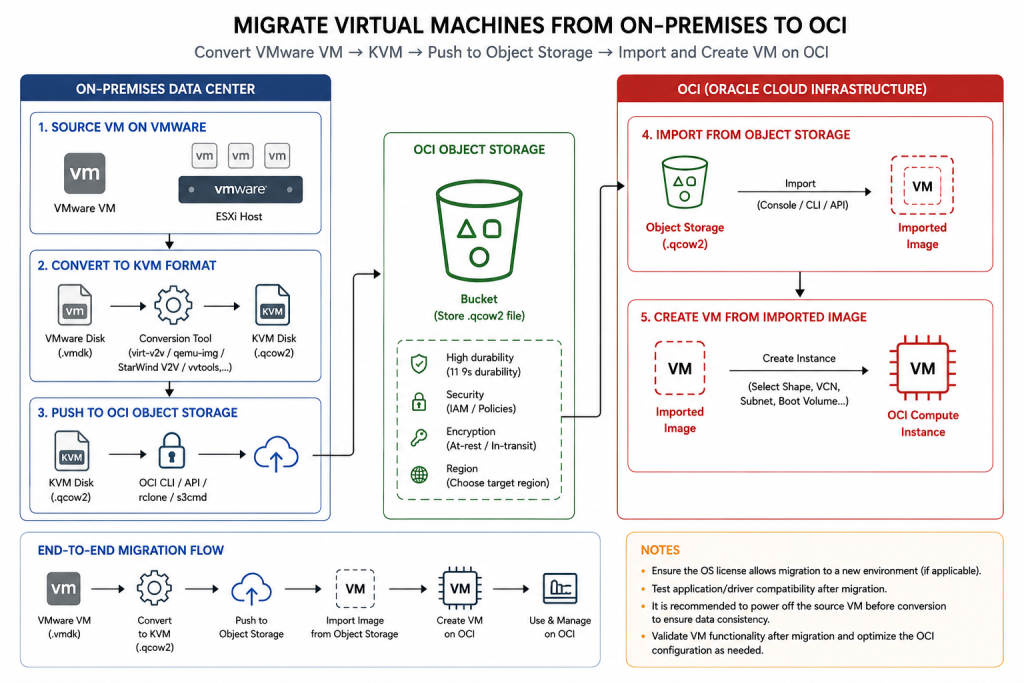
Architech
Requirements
- Use QCOW2 Image Format — Convert the source VMware virtual disk (VMDK) to a supported QCOW2 image.
- Single Boot Disk — The QCOW2 image should contain only one boot disk; migrate additional data disks separately.
- Maximum Image Size: 400 GB — The imported image must not exceed OCI’s supported image size limit.
- Valid Boot Configuration — Ensure the image contains a valid boot loader and supported boot configuration.
- Disable Disk Encryption — The source boot disk/image must not be encrypted before conversion and import.
- Use DHCP for Networking — Configure the operating system to obtain its network configuration through DHCP.
- Remove Static Network Settings — Remove hard-coded IP addresses, MAC addresses, and VMware-specific network configuration.
- Verify Required Drivers — Ensure the OS has the appropriate storage/network drivers for the selected OCI launch mode; install VirtIO drivers where required.
- Shut Down Before Conversion — Power off the source VM before converting VMDK to QCOW2 to ensure filesystem and application consistency.
- Validate After Migration — After creating the OCI instance, verify boot, networking, applications, storage, performance, and OS licensing.
This illustration shows only a high-level overview. The actual system also includes APIs provided to tenants for VM export, disk copy, and VM import into OCI.